Get Fast Support From Our Sales Team
Get Fast Support From Our Sales Team
Need product information, quotation, samples, or delivery details? Our sales specialists will help you select the right TFT, OLED, AMOLED, or custom display solution.
Need product information, quotation, samples, or delivery details? Our sales specialists will help you select the right TFT, OLED, AMOLED, or custom display solution.

Touchscreen modules combine a display panel and a touch sensor in one assembly for machine controls, instruments, and kiosks. A TFT LCD module can use projected capacitive (PCAP) touch for multi-finger gestures or a pressure-activated resistive panel for gloved or stylus input. Selected PCAP configurations also support wet-finger operation.
Choose the format based on where the screen will sit and whether your setup already has a host computer.

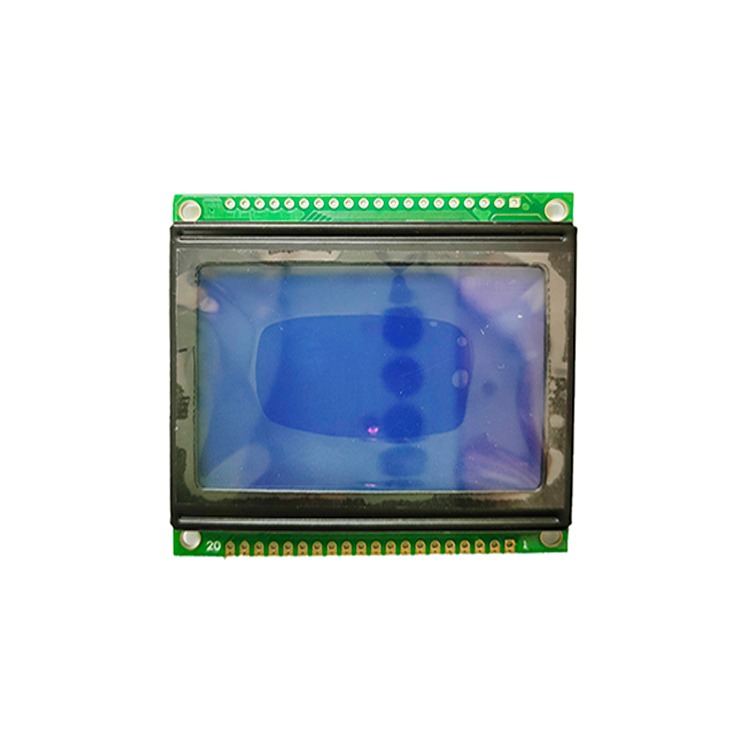
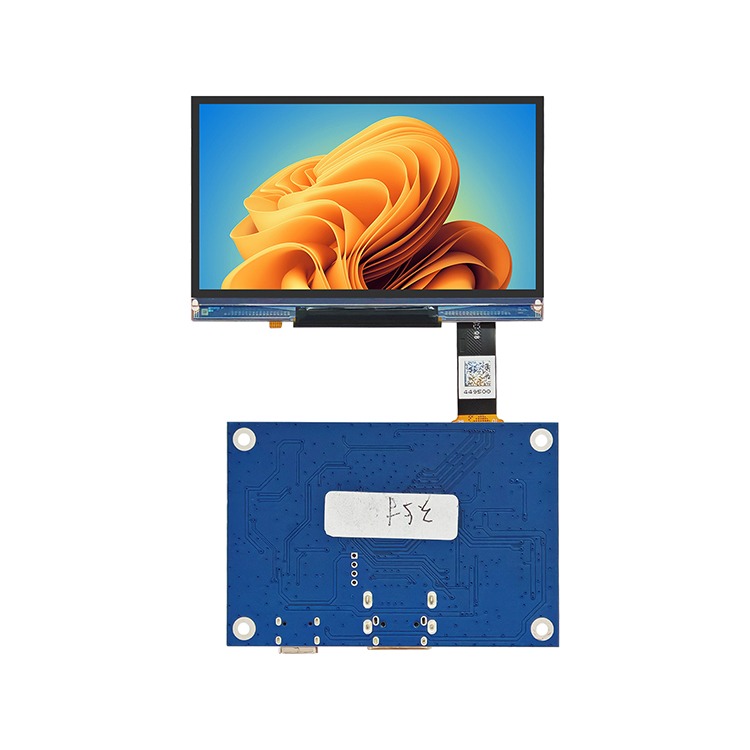
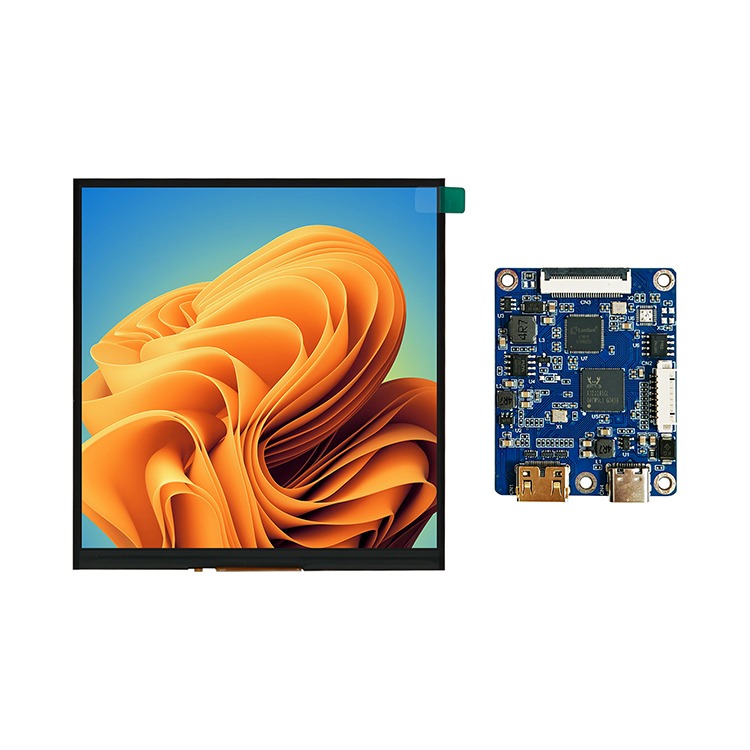
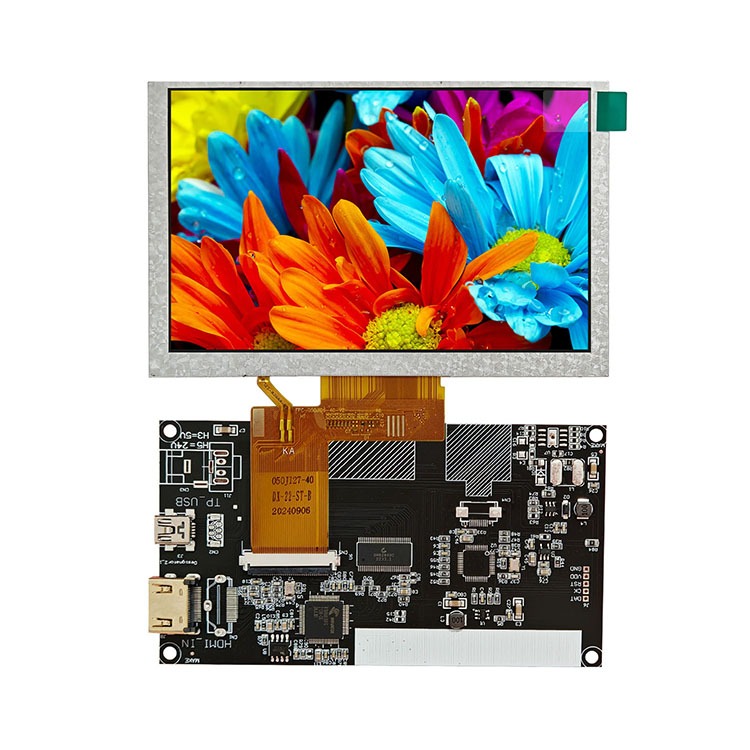
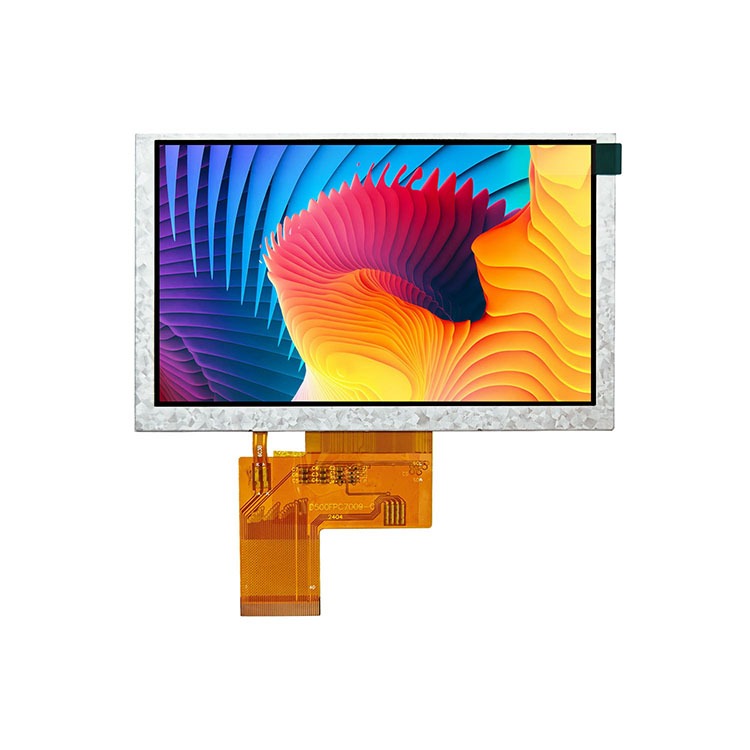
Browse color TFT and monochrome graphic LCD modules. Compare screen sizes, resolutions and interfaces, including MIPI, RGB and parallel, to find a match for your hardware.
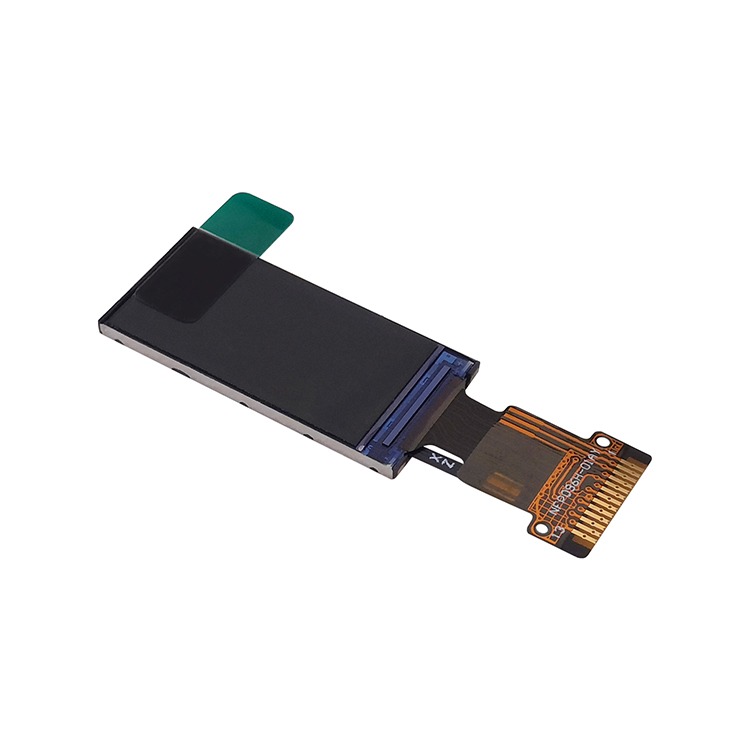
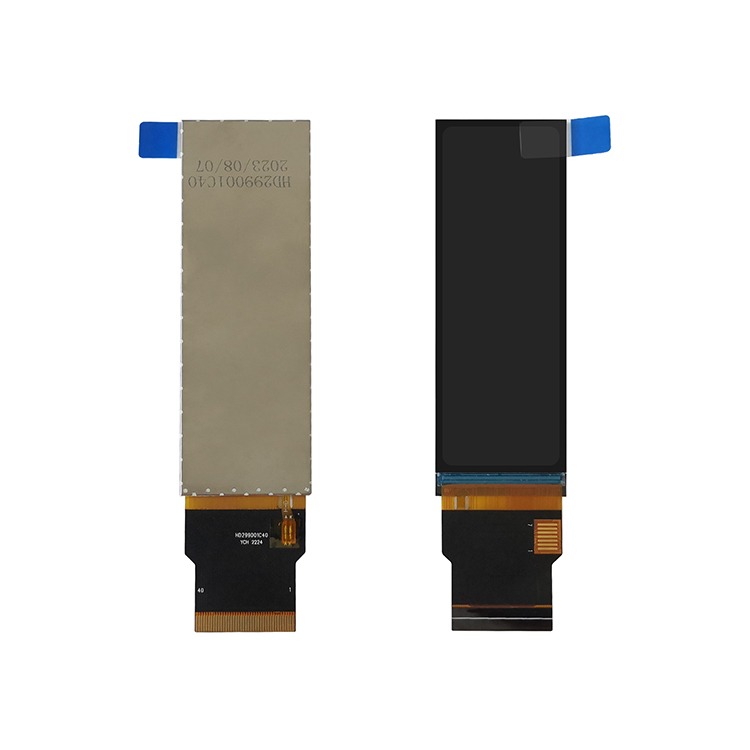
The HRF 4700C9-AYH-MNC1 features a 280 × 1424 pixel IPS TFT LCD, a 4-lane MIPI display interface and projected capacitive touch with a GT911 controller over I²C. The module measures 43.3 × 201.0 × 5.76 mm and operates from −20 °C to +70 °C.
| Parameter | Specification |
|---|---|
| Model | HRF 4700C9-AYH-MNC1 |
| Display type | 7-inch bar-type IPS TFT LCD |
| Resolution | 280 × 1424 pixels |
| Active area | 33.60 × 170.88 mm |
| Module outline | 43.3 × 201.0 × 5.76 mm |
| Display interface | 4-lane MIPI |
| Display driver | OTA7290N-C |
| Touch technology | Projected capacitive (PCAP) |
| Touch controller and interface | GT911, I²C, firmware v71 |
| Surface finish | Glossy |
| Operating temperature | −20 °C to +70 °C |
| Storage temperature | −30 °C to +80 °C |
Start with what operators will use to press or tap the screen. Projected capacitive (PCAP) detects changes in an electrical field. Consider it for finger operation and tasks that need several contacts at once. Verify whether the model supports your gloves or a compatible stylus, since support varies by controller and configuration.
Resistive panels register physical pressure. A single-touch model can suit a station where gloved operators select one button at a time. If your team uses a pointing tool, check which tip materials the manufacturer approves. Where gloves are required, test with the actual material and thickness users wear on shift.
Choose the screen size and native resolution together. At the same diagonal, more pixels can make fine text and linework sharper. Check your application at its intended scaling from the actual viewing distance. On a control panel, make sure labels are readable and buttons are large enough to select accurately. On a shared display, check the smallest text from the farthest intended viewing position.
Compare rated brightness in cd/m² and look for an anti-glare finish if lights or windows reflect off the glass. Where users approach from different sides, check horizontal and vertical viewing angles. If the datasheet lists an IPS panel, use the documented angles and check readability from the positions people will actually use.
One simultaneous contact can be enough for menu selection, check-in prompts or a checkout flow that uses one button at a time. Choose multi-touch if your application uses a two-finger pinch to zoom or needs more contacts for shared tasks. Check how many contacts the display, host and application can recognize together.
For signatures or annotation, test the intended pen and software together. If pressure sensitivity matters, confirm that the pen, display and application support it.
Test short taps, rapid selections and dragging near the edges to see how accurately the controls register in the actual workflow.
Use the model’s operating limits to decide whether it can handle the site. For dusty or damp locations, check the documented ingress protection rating and whether it applies to the front face, the whole unit or a specified mounting configuration. Check temperature and humidity limits inside the enclosure, where heat can build up. For long shifts or around-the-clock use, check permitted daily operating hours and ventilation clearances.
For a public or shared station, check which cleaners, cloths and methods the manufacturer permits. Verify how staff can pause on-screen controls during cleaning to prevent accidental selections. Technical Support
Find out how to choose a touchscreen monitor for your setup, check whether it works with your devices and software, and verify installation and ordering details before you buy.
Choose a desktop model for an existing workstation, a portable model for temporary setups, or an open-frame unit for a custom enclosure. For shared use, consider a large-format display. If the installation needs a built-in computer, check whether an all-in-one system can run your application.
Consider projected capacitive (PCAP) for finger operation and tasks that use several simultaneous contacts. A pressure-activated resistive panel can suit gloved operators who select one control at a time. Check whether the exact model supports the gloves or stylus your team uses.
Start with the viewing distance and the smallest text or button users need to see. Compare native resolution at your application’s intended scaling. For bright rooms or shared installations, also check brightness, glare treatment and viewing angles.
One contact is often enough for checkout buttons or menu selection. Choose multi-touch for tasks such as two-finger pinch to zoom. Confirm how many contacts the display, host and application can recognize together.
If you’re using HDMI or DisplayPort for video, check whether the model requires a separate upstream USB cable for touch data. Then confirm that your operating system version is supported and check whether the model requires a driver or calibration.
Yes, if the host, display and cable support both video and USB data. If you also want the cable to carry power, verify which device supplies it and whether the ports and cable support the required wattage.
Use the dimensional drawing for the exact model. Check the cutout width, height and corner radius, along with panel thickness, mounting depth and clearance for connected cables. Confirm which side needs to remain accessible for installation and servicing.
Check the model’s documented ingress protection rating and whether it covers the front face, the entire unit or a specific mounting configuration. Compare the site’s temperature and humidity with the published limits. For continuous use, also check the permitted operating hours.
Follow the model’s cleaning instructions for approved products and cloths. Before wiping the screen, use the documented method to pause controls or power down the unit to prevent accidental selections.
Use the exact model number and configuration to match the listing to the datasheet, installation drawing and host support documentation. If variants share a product name, verify which touch technology, finish and ports the selected version includes.